CloudStream APK v4.8.0: Official Download & All Repositories
CloudStream, sometimes typed as Cloud Stream or searched as CloudStream APK, is a free, open-source streaming app for Android and Android TV. It doesn’t host or own any movies or shows itself; instead, it connects to content through community-built extensions and repositories, giving you a single ad-free player with no subscription and no login screen.
CloudStream isn’t listed on the Play Store, so there’s no official download counter or star rating for it. We verify the version and license directly against the official GitHub release instead. Last verified: July 2026, v4.8.0
CloudStream (CloudStream 3 / CS3) is a free, open-source Android and Android TV app that plays movies, shows, and anime through community-built extensions rather than hosting content itself. It isn’t on the Play Store, has no ads or login, and needs at least one repository installed before any content appears.
Table of Contents +
What Is CloudStream?
CloudStream is a free, open-source media application for Android, Android TV and Google TV, with community workarounds for Fire TV and Windows. It’s maintained in public on GitHub by independent developers, not a private company.
The one thing that surprises almost every first-time user: CloudStream does not store, host, or own any movies or shows. Open it right after installing and you’ll see an empty home screen. That’s expected.
What Is CloudStream 3 (CS3)?
CloudStream 3, usually just written as CS3, is the current and only actively maintained version of the app. It’s technically the third generation of the project: CloudStream 1 and CloudStream 2 both existed before it, but both were discontinued years ago and no longer function on modern Android devices. When someone today says “CloudStream,” “CloudStream APK,” or “Cloud Stream,” they mean CloudStream 3, rebuilt from scratch by the current reCloudStream maintainers and the version this entire guide covers.
| Developer | reCloudStream open-source community |
| Category | Media streaming & download manager |
| Platforms | Android, Android TV, Google TV, Fire TV, Windows |
| Built with | Kotlin |
| Source code | Public on GitHub |
| Sign-up required | No |
| Content source | Third-party extensions only |
| Play Store listing | Not available |
How Does CloudStream Work?
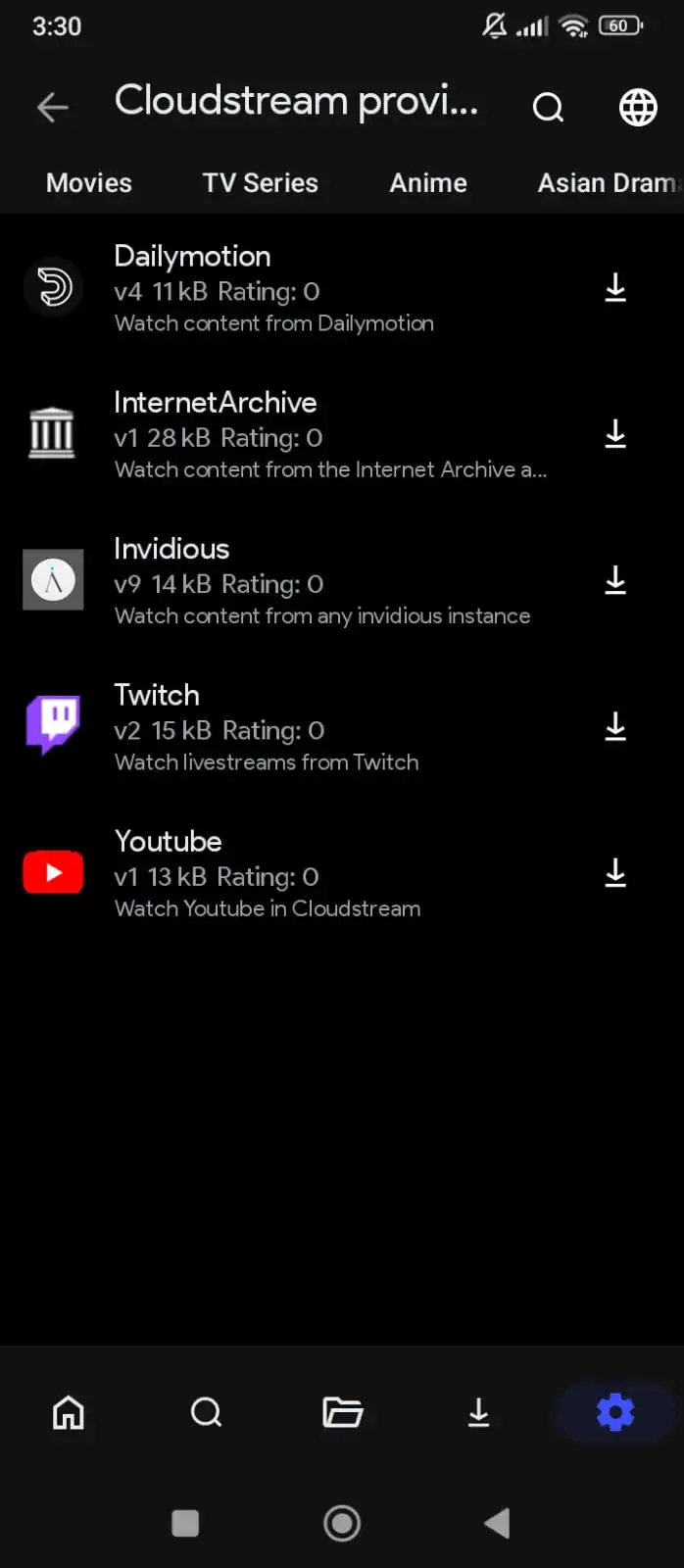
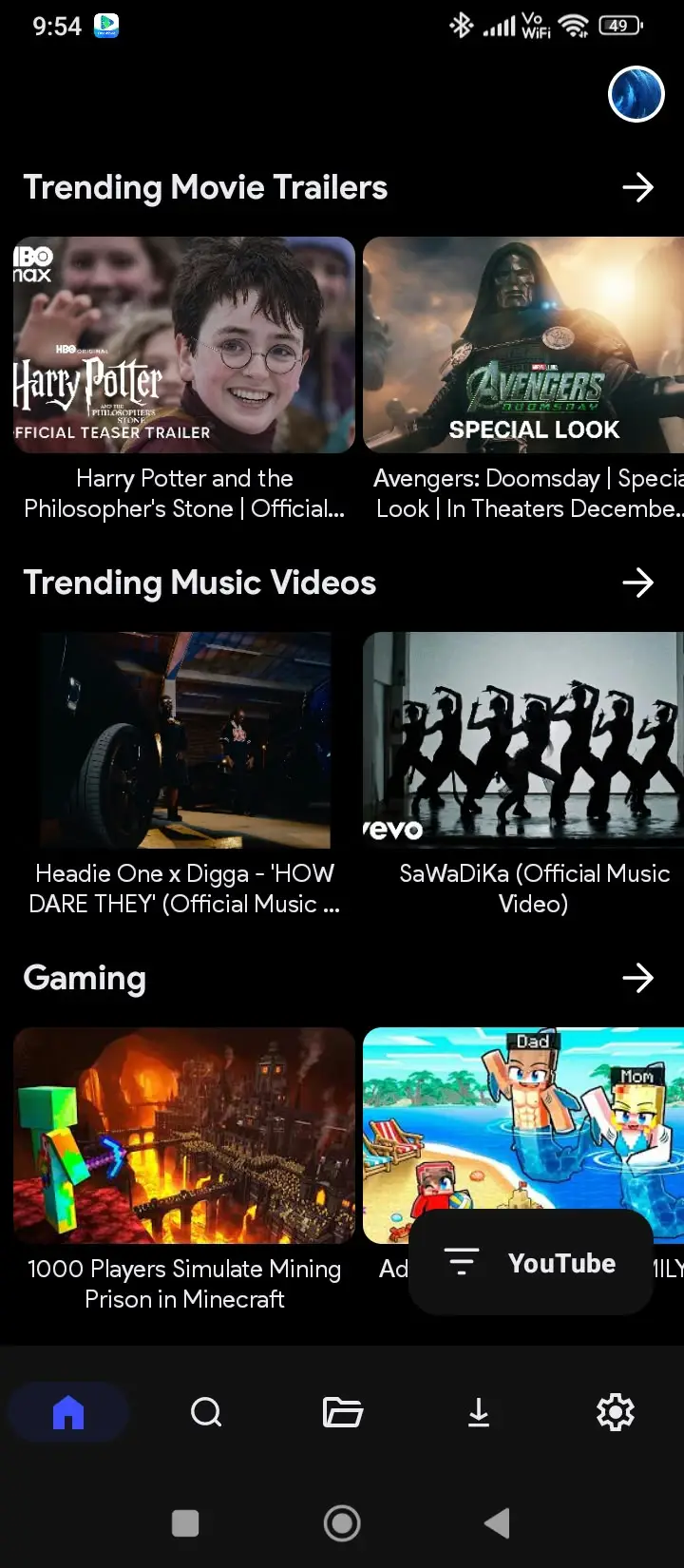
CloudStream works through three connected layers: the core app, which is just the interface and player; repositories, which are lists of available extensions; and extensions, which connect to the actual content sources. Nothing about the app is confusing once you see how the pieces connect.
The shell
Handles the interface, the built-in player, subtitles, downloads, watch history and settings. On its own it shows nothing.
The catalog
A small hosted index file listing available extensions, like a shelf label pointing to what plugins you can install.
The provider
Connects to one external content source, searches it, and returns playable links into the CloudStream player.
Why it’s built this way: if one content source goes down, only the extension using it breaks. The rest of the app, and every other extension, keeps working normally.
Is CloudStream safe and legal to use?
The app itself is open source: every line of it is publicly viewable on GitHub. There’s no hidden tracking layer, and installing it is no different from installing any other transparent, community-reviewed Android app.
The extensions vary. Since anyone can publish a repository, stick to ones with an active maintenance history. The reCloudStream team has stated publicly that extensions hosting copyrighted media without permission aren’t allowed on the project, and copyright holders can request removal of any that breach their rights.
CloudStream Features: What You Actually Get
CloudStream’s main features are a free ad-free player, no-login access, multi-source content through extensions, offline downloads, Chromecast and subtitle support, and cross-device compatibility. Here’s how each one plays out once you’ve installed at least one extension.
Free and ad-free
The core app has no forced ads, no paywall, and no mandatory account, so the interface stays uncluttered from first launch onward.
No login required
You can open CloudStream and start browsing right away once extensions are installed; there’s no sign-up screen standing between you and the content.
Support across devices
The same core experience runs on phones, tablets, TV boxes, and, with an emulator, Windows PCs too.
A built-in video player
Playback controls, resizing, and speed adjustment are included, so there’s no need to install VLC or MX Player separately.
Offline downloads
Many extensions let you save content straight to your device, useful for travel or when your connection isn’t reliable.
Chromecast support
Casting from a phone or tablet to a Chromecast-enabled TV means you’re not stuck watching everything on a small screen.
Subtitle support
Subtitles can be added and synced manually, and several extensions pull them in automatically, often in more than one language.
Multiple content sources in one app
Movies, series, anime, and in some cases live TV all surface in a single interface instead of forcing you between separate apps.
Continue watching
Watch history is saved automatically, so picking up a title exactly where you left off doesn’t take any extra effort.
A customizable home screen
Which extensions and categories show up first is entirely up to you, so the layout can match how you actually browse.
Steady open-source updates
Because development happens in public on GitHub, bug fixes and compatibility updates come from an active contributor base rather than a single company’s release calendar.
Why Choose CloudStream?
- It costs nothing to install and nothing to keep using.
- It doesn’t ask for an email address, phone number, or payment method upfront.
- You control exactly which content sources power your library, rather than being locked into one fixed catalog.
- The open-source codebase means nothing about how the app works is hidden from the community reviewing it.
- It works across phones, tablets, TVs, and PCs, so the same habits carry over between devices.
- Offline downloads help when your internet connection is limited or unreliable.
- The app rarely breaks entirely, since individual extensions can be fixed or swapped without touching the rest of it.
CloudStream System Requirements
CloudStream needs a stable internet connection, a device running a reasonably current version of Android (or Windows with an emulator), a little free storage, and permission to install apps from outside the Play Store.
| Requirement | Details |
|---|---|
| Internet connection | Stable, ideally a few Mbps or higher for smooth playback |
| Device type | Android phone/tablet, Android TV, Google TV, Fire TV, or Windows PC with an emulator |
| Android version | A reasonably recent, actively supported version of Android |
| Free storage | Small amount for the app, more if downloading content offline |
| Install permission | “Install unknown apps” enabled, since it isn’t on the Play Store |
| Sideloading tool (TV/Fire TV) | The Downloader app |
| Windows | An Android emulator |
How to Install CloudStream (Android, Firestick, Android TV, PC)
CloudStream is installed by sideloading the APK file directly, since it isn’t on the Play Store; the exact steps depend on your device. Pick your platform below. Each guide is written for that device specifically, no generic steps that don’t apply.
Install CloudStream on Android (Phone & Tablet)
Allow installation from unknown sources
Settings > Security > Install unknown apps > enable it for your browser or file manager.
Download the APK file
Get the latest stable release from a trustworthy source, such as the official GitHub releases page.
Install the app
Open the downloaded file, confirm the security prompt, and tap Install, then Open.
Set up extensions
The home screen will look empty at first. That’s normal. Head to the Repositories section below to add content sources.
Install CloudStream on Firestick and Fire TV
Enable apps from unknown sources
Settings > My Fire TV > Developer Options > turn on Apps from Unknown Sources.
Install the Downloader app
Search “Downloader” in the Amazon Appstore and install it.
Download and install CloudStream
Enter the CloudStream APK URL inside Downloader, wait for the download, then tap Install.
Move it to your home row
Find it under Apps > Your Apps & Channels if it doesn’t appear automatically, then launch it.
Install CloudStream on Android TV and Google TV
Enable unknown sources
Settings > Security & Restrictions > enable Unknown Sources for Downloader or your file manager.
Install Downloader
Grab it from your TV’s app store if it isn’t already installed.
Download the APK
Enter the CloudStream APK URL in Downloader and let it install.
Launch from your apps list
Non-Android smart TVs need an external Android TV box connected instead.
Install CloudStream on PC and Windows
Install an Android emulator
Download and set up a reliable Android emulator for Windows.
Complete initial setup
Let the emulator finish creating its virtual Android environment.
Install CloudStream
Use the emulator’s browser to download the APK, or drag-and-drop a downloaded file into the window.
Launch and resize
Open CloudStream from the app drawer and resize the window for a better viewing experience.
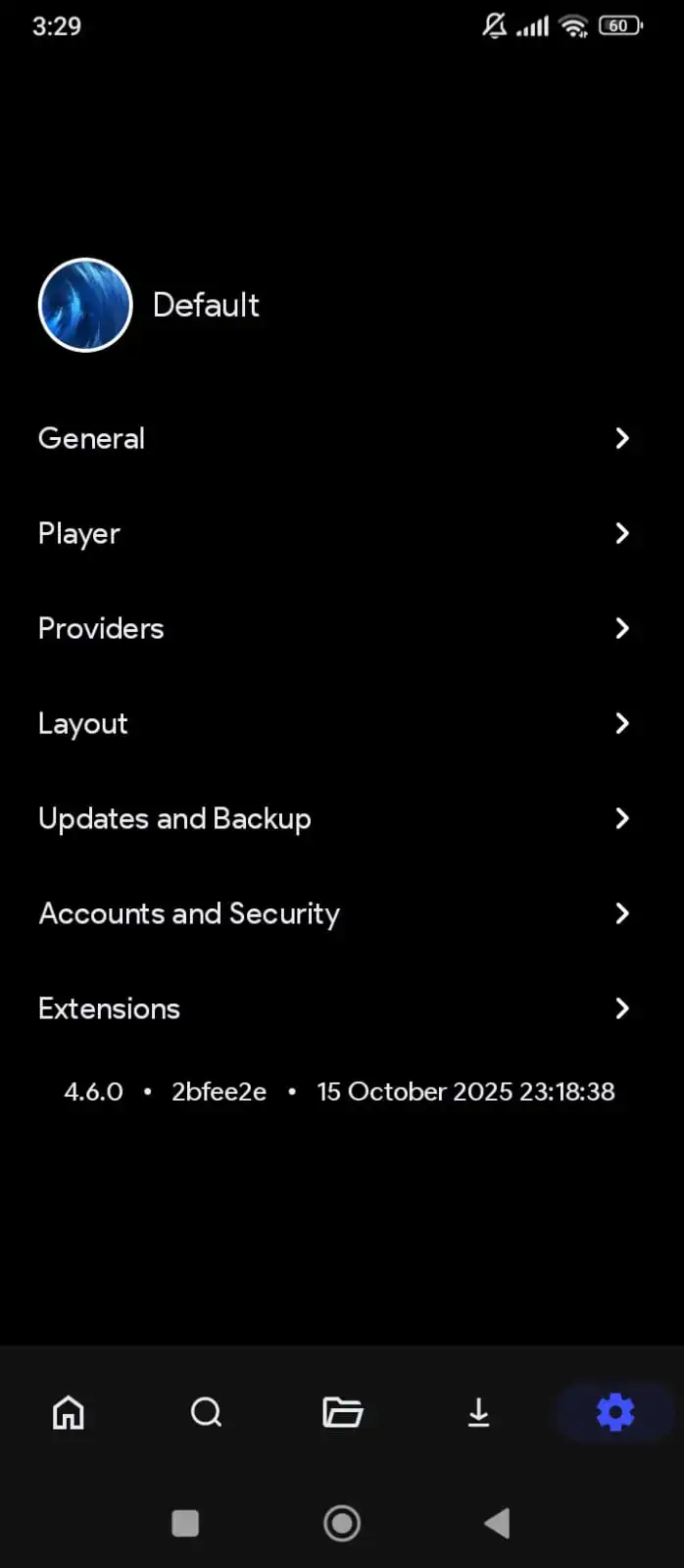
How to Add a Repository in CloudStream
This is the step that actually brings the app to life, and the part that confuses most first-time users, so here it is broken down slowly.
Open Settings
Tap the Settings icon in the bottom navigation bar.
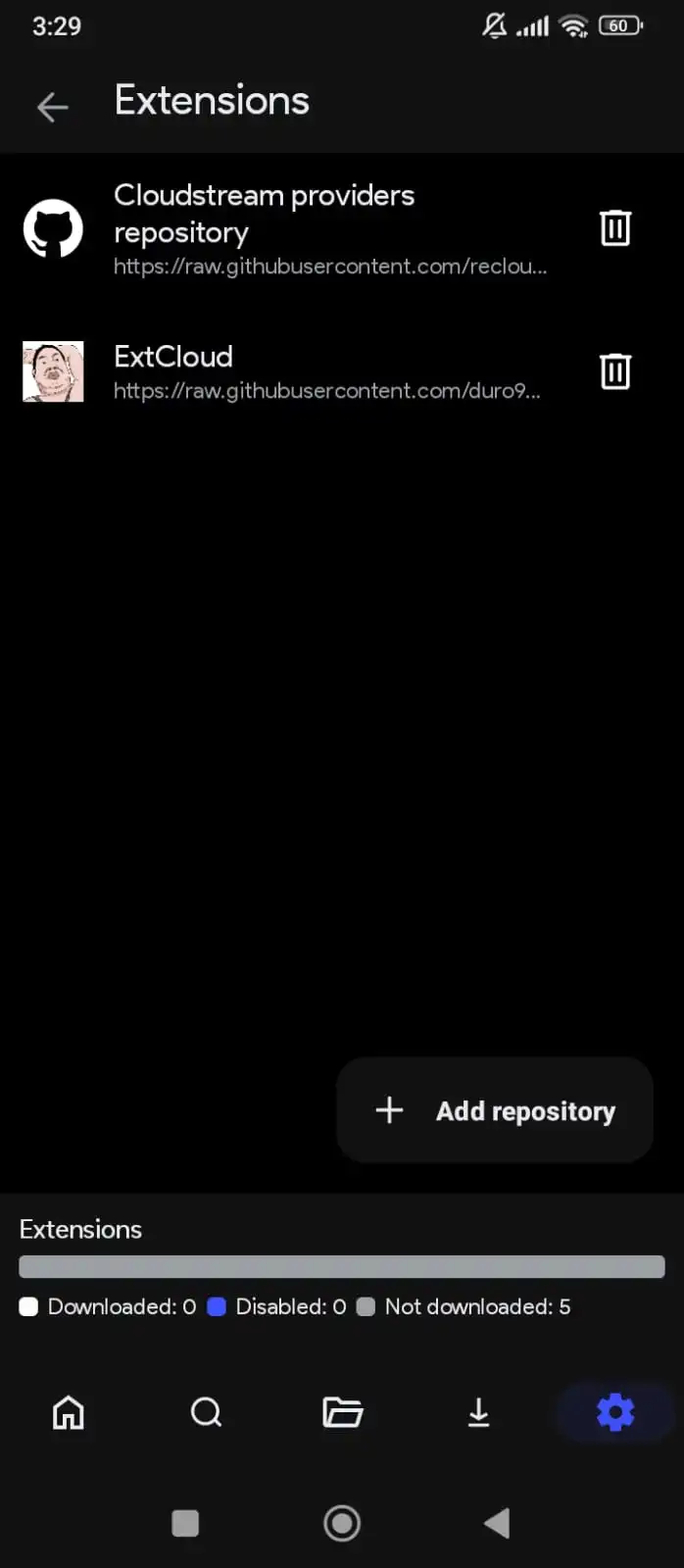
Go to Extensions
This is where all repository and plugin management happens.
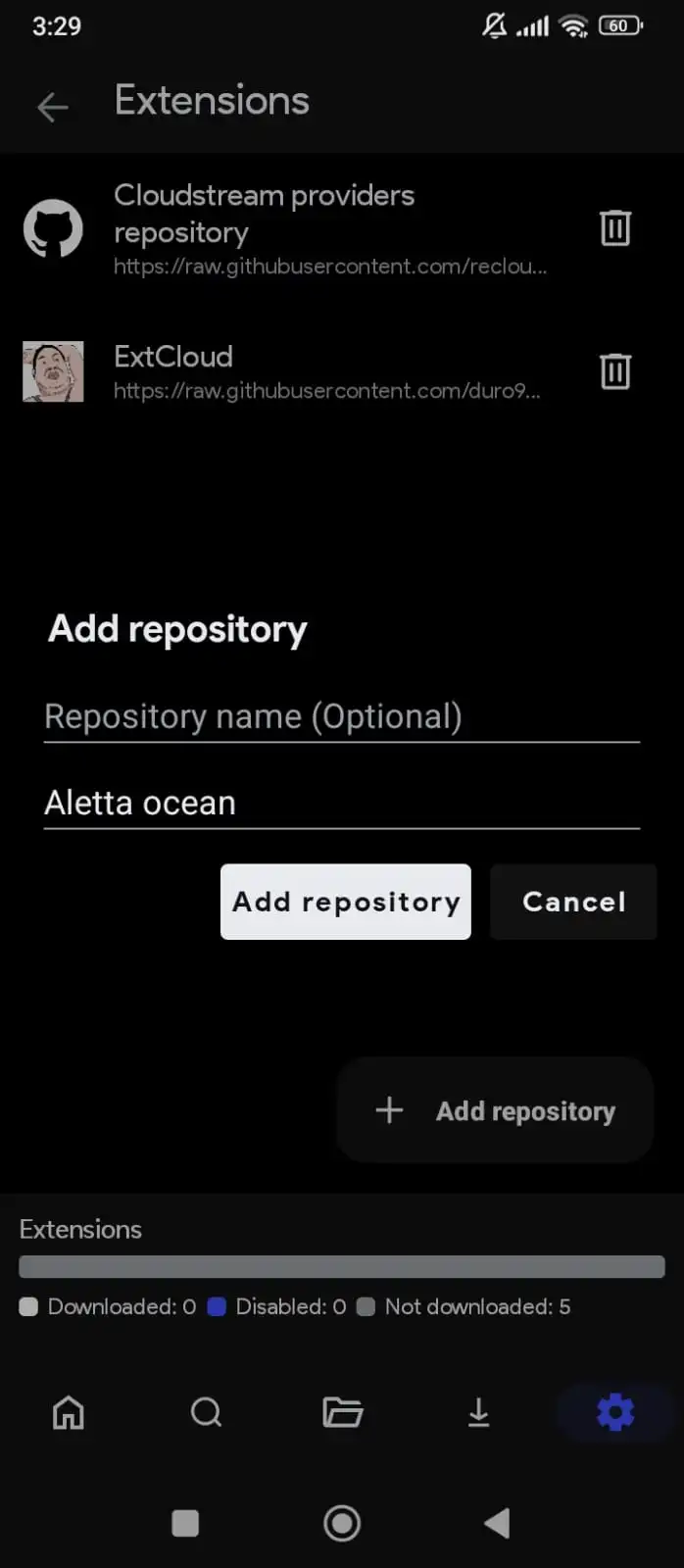
Add a repository
Tap Add Repository and paste a repository link, or enter a shortcode.
Browse and install extensions
A list appears once the repository loads. Tap the ones you want and confirm install for each.
Return to the home screen
Tap the empty state button to select from your newly installed extensions.
Search and play
If one server link buffers, try another from the same title. That’s normal, not a sign the content is gone.
CloudStream Repository Finder
Tell it what you’re looking for, anime, a specific language, or just browse everything, and it filters down to the matching repositories with a ready-to-copy shortcode.
What a shortcode actually is: it’s a short, community-created alias (built on the Cuttly URL shortener) that points to a repository’s full install URL. Anyone can create one, even for a repository they didn’t build, so a shortcode isn’t officially vetted by the CloudStream team the way the core app is. If a shortcode ever stops working, that repository’s full raw GitHub URL is the reliable fallback.
19 repositories
| Repository | Category | Shortcode | Copy | Direct Install |
|---|---|---|---|---|
| English | Language | 6wyw1RnS | Open ↗ | |
| Multilingual | Multi-Source | Bwyw1S3k | Open ↗ | |
| Arabic | Language | Jwyw1ZiR | Open ↗ | |
| Hexated | Multi-Source | mwyw140i | Open ↗ | |
| Likdev | Multi-Source | bwyw0Mcv | Open ↗ | |
| Storm | Multi-Source | Swyw03Nc | Open ↗ | |
| Crunchyroll | Anime | wwyw2e4x | Open ↗ | |
| French | Language | jwyw2fJc | Open ↗ | |
| Horis | Multi-Source | Owyw2lbO | Open ↗ | |
| CakesTwix | Multi-Source | gwyw2YuE | Open ↗ | |
| FStream | Multi-Source | fstream | Open ↗ | |
| Avocado | Multi-Source | aguaco | Open ↗ | |
| Turkish | Language | KekikAkademi | Open ↗ | |
| Arabico | Language | 0wF96Vs1 | Open ↗ | |
| Mega Auto-adds every other known repository in one tap | Multi-Source | megarepo | Open ↗ | |
| CloudStream Providers Repository | Official | cspr | Open ↗ | |
| Phisher Repo Includes AllWish, DoraBash, AnimeCloud, Jellyfin, ShowFlix | Multi-Source | phisherrepo | Open ↗ | |
| CNCVerse | Language | cncv | Open ↗ | |
| CSX (Megix Repo) Includes Bollyflix, CineStream, MoviesDrive, VegaMovies | Language | csx | Open ↗ |
No repositories match that search. Try a different keyword, or clear the filter above.
Tap Copy to paste the shortcode into CloudStream’s Settings > Extensions > Add Repository field, or tap Open on a device where CloudStream is already installed to trigger the direct install prompt.
How to Update CloudStream
CloudStream doesn’t auto-update through the Play Store. Download the newer APK and install it directly over the existing app. Your settings, history and extensions are normally preserved.
What’s new in the latest release
v4.8.0 · July Update- Added an intro-skip database for recognized shows
- Added a metadata overlay for the Android TV interface
- Added support for more external video players
- Fixed several previously reported security issues
- Fixed a number of download-related bugs
- Updated the filler-episode database for anime extensions
- Refreshed parts of the UI for cleaner navigation
- Various internal code and stability improvements
Need an older version? If the latest release causes an issue on your device, previous stable versions remain available from the official GitHub releases page so you can roll back until the problem is fixed.
| Version | Status | Notable change |
|---|---|---|
| v4.8.0 | Current | Intro-skip database, security fixes, Android TV metadata overlay |
| v4.7.0 | Previous | Additional external player support, download bug fixes |
| v4.6.0 | Previous | Subtitle sync improvements, UI refresh |
| v4.5.0 and earlier | Legacy | Available in the GitHub release archive; not recommended for daily use |
Version numbers and change summaries are drawn from the public release notes on GitHub. We don’t mirror old APK files ourselves; download directly from the source to make sure the file hasn’t been tampered with.
CloudStream vs Other Streaming Apps
Compared to other free streaming apps, CloudStream’s main difference is that it doesn’t host any content itself. It’s ad-free, open-source, and extension-based, so quality and availability depend on the extensions you add rather than one fixed library.
| Feature | CloudStream | Other Free Apps |
|---|---|---|
| Cost | 100% free | Usually free, some hide paid tiers |
| Ads | Completely ad-free | Most show ads |
| Hosts content directly | No, extensions only | Many host or mirror content |
| Content quality | Up to 4K, depending on source | Often capped at 1080p/720p |
| Extension system | Yes, fully modular | Rare, fixed content lists |
| Sign-up required | No | Some require an account |
| Customization | High | Usually fixed |
CloudStream Alternatives
CloudStream isn’t the only extension-based streaming app. If it doesn’t fit what you need, these are the alternatives worth knowing about.
We’re not affiliated with any of these projects; this comparison is here to help you pick the right tool, not to promote one over another.
CloudStream Pros and Cons
In short: CloudStream’s biggest advantage is that it’s free, ad-free, and open-source; its biggest drawback is that it needs manual setup and shows no content until you add extensions yourself.
Pros
- Completely free with no ads in the core app
- Fully open-source and transparent codebase
- Flexible extension system, not locked to one catalog
- Works across phones, TVs, and PCs
- Offline downloads for unreliable connections
Cons
- Empty on first launch until extensions are added
- Not on the Play Store, needs manual installation
- Extension reliability varies by source
- Manual updates instead of automatic ones
- A short learning curve for first-time users
CloudStream Not Working? Common Problems and Fixes
Most CloudStream issues trace back to one of three causes: no extensions installed yet, an outdated extension, or a blocked install permission. Find your symptom below.
No content appears on the home screen ▾
Video player not working or stuck buffering ▾
Links keep failing or buffering ▾
Installation is blocked on Android ▾
CloudStream keeps crashing or stopping ▾
A repository link won’t load ▾
Tips for a Smooth CloudStream Experience
The single biggest factor in a good CloudStream experience is extension quality, not the app itself. These habits keep it running reliably.
Use a stable, reasonably fast connection. Since content streams from external sources, a weak connection causes more buffering than the app itself ever does.
Keep every installed extension updated. An outdated extension is the single most common cause of broken links and missing content.
If a title won’t play on one extension, search for it on another. Coverage varies a lot between extensions, even within the same repository.
Download content you know you’ll want offline, such as before travel, rather than relying on a live connection at the time.
Organize your home screen once you have several extensions installed, so the categories you actually use stay easy to find.
Stick to repositories with an active, visible maintenance history rather than random links shared with no context.
CloudStream Community & Support
CloudStream doesn’t run a support ticket system; help comes from the open-source community itself, through a few verified channels.
r/Cloudstream3 is the most active community hub for install help, extension recommendations, and troubleshooting from other users.
GitHub Issues
For actual bugs in the core app, the GitHub Issues page is where the development team tracks and fixes reported problems directly.
We link only to channels we could independently verify are active and maintained by the CloudStream community.
How this guide is verified
Everything above is checked against primary sources rather than paraphrased from other guide sites. Here’s exactly where the facts come from.
Primary sources we checked
- recloudstream/cloudstream on GitHub, for version numbers, license, and release changelogs.
- The official CloudStream Wiki, for repository and extension details, including how shortcodes work.
- Community discussion on Reddit and the CloudStream Matrix chat, for real-world install issues and fixes.
Our verification rule
If a number can’t be traced to a primary source, either the CloudStream GitHub repository or the official wiki, we don’t publish it as fact. That’s why you won’t find an invented download count or star rating on this page; CloudStream isn’t on the Play Store, so no official figure like that exists.

Frequently asked questions
What is CloudStream? ▾
Is CloudStream free to use? ▾
Do I need an account to use CloudStream? ▾
Why is CloudStream empty when I first open it? ▾
Is CloudStream on the Google Play Store? ▾
Is CloudStream legal? ▾
Can I use CloudStream on a Smart TV? ▾
What is the CloudStream APK for Android TV? ▾
Does it work without an internet connection? ▾
Is it safe to install any repository I find? ▾
Which repository should I use for anime on CloudStream? ▾
Conclusion
CloudStream is a free, open-source streaming framework, not a fixed content library. Install the core app, add a trusted repository, and it becomes exactly as capable as the extensions you choose to run.
The one idea worth carrying away from this whole guide is the layered structure: the app, the repository, and the extension are three separate things, and understanding that is what makes CloudStream 3 (CS3) make sense instead of feeling broken on first launch. Whether you’re setting it up on a phone, a Firestick, an Android TV box, or a PC through an emulator, the process is the same every time: install the app, add a repository through the Repository Finder above, install a few extensions, and you’re streaming.
Ready to set up CloudStream?
Install the core app, add a trusted repository, and you’re streaming in minutes.