Download CloudStream APK v4.8.0 before following this guide.
Install CloudStream on Android TV & Google TV (2026): 3 Easy Methods
Written by Zaryab, Founder & Editor, CloudStream Guide. Last updated: 30 September 2026.
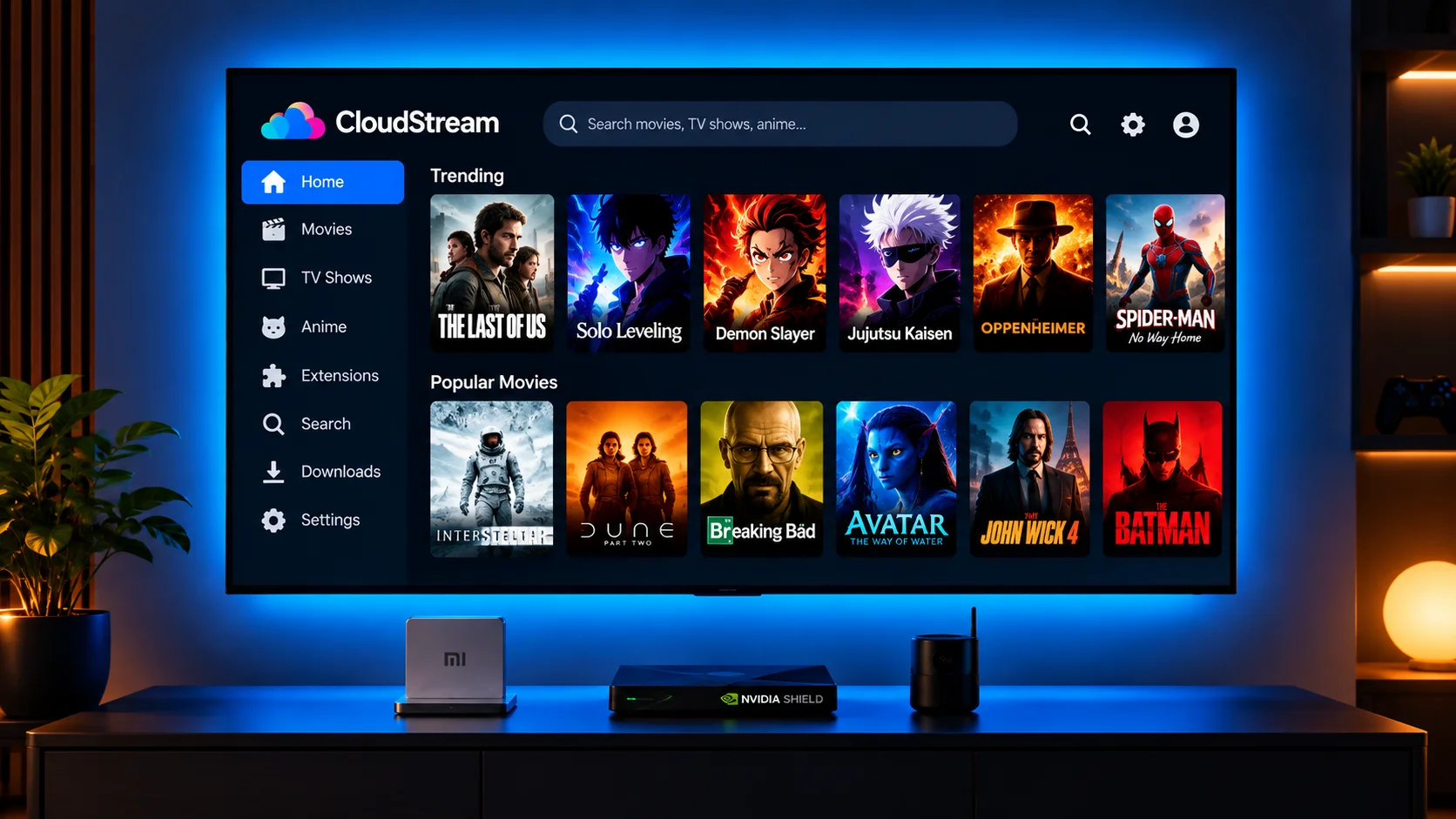
Want CloudStream on your Android TV or Google TV? Since the app is not on the Google Play Store, you install it by sideloading the APK. This guide shows you 3 methods to do it in about 10 minutes, with no technical skills needed.
| Detail | Info |
|---|---|
| App Name | CloudStream |
| Latest Version | v4.8.0 Stable |
| Compatible Devices | Android TV, Google TV, Nvidia Shield, Mi Box and similar |
| Install Time | About 10 minutes |
| Price | 100% free, no subscription |
| Ads | None inside the app |
| Login Required | No account needed |
✅ Quick Answer: How to Install CloudStream on Android TV
- Install the Downloader app from the Google Play Store on your TV.
- Allow Downloader to install unknown apps in the security settings.
- Open Downloader and enter
github.com/recloudstream/cloudstream/releases/latest. - Download and install the CloudStream APK from Assets.
- Open the app, add a repository and install extensions.
📺 Compatible Android TV & Google TV Devices
CloudStream is an Android app, so it runs on devices with Android TV or Google TV software.
| Device type | Status | Notes |
|---|---|---|
| Smart TVs with Android TV / Google TV (Sony, TCL, Hisense, Philips) | ✔ Works | Menu names vary by brand |
| Chromecast with Google TV | ✔ Works | Use Downloader or a USB drive |
| Nvidia Shield TV | ✔ Works | Plenty of power for 4K sources |
| Xiaomi Mi Box and similar boxes | ✔ Works | Sideload the APK |
| Other Android TV boxes | ✔ Works | Needs Android 5.0 or later |
Older or low-memory boxes can feel slower in any app. Fire TV devices use a different guide.
⚡ Method 1: Install via Downloader App RECOMMENDED
The easiest method. Downloader is free on the Google Play Store and lets you download the APK straight to your TV.
Install Downloader
- On your TV home screen, open the Search icon.
- Type “Downloader” and select the Downloader app by AFTVnews (orange icon).
- Click Install, then Open.
Allow Unknown Apps
- Go to Settings on your TV.
- Open Device Preferences (or Apps), then Security & restrictions.
- Choose Unknown sources and turn it ON for Downloader.
⚠ Menu names vary: On some TVs you first enable developer mode by opening Settings, About, and clicking Build seven times. On newer versions you can skip this and allow Downloader when the install prompt asks you.
Download CloudStream APK
- Open Downloader and click the URL bar on the Home tab.
- Type
github.com/recloudstream/cloudstream/releases/latestand press Go. - Scroll to Assets and select the APK file to download.
Install CloudStream
- When the download completes, the installer opens automatically.
- Click Install and wait a few seconds.
- Click Open to launch CloudStream.
- Back in Downloader, delete the APK to free up storage.
💡 Pro Tip: If you see a Play Protect warning, choose Install anyway. Download only from the official GitHub page, since modified APKs from unknown mirrors are the main risk.
💾 Method 2: Install via USB Drive
Best if your TV has slow internet or no Downloader available.
- On a phone or PC, download the CloudStream APK from the official GitHub releases page.
- Copy the APK to a USB drive.
- Plug the USB drive into your TV or box.
- Open a file manager app on the TV, find the APK and select it.
- Allow the file manager to install unknown apps if asked, then click Install.
📱 Method 3: Transfer from Phone via Send Files to TV
Good when you already have the APK on your Android phone.
- Download the CloudStream APK on your phone from the official GitHub page.
- Install “Send Files to TV” on both your phone and your TV.
- Connect both devices to the same Wi-Fi network.
- On the phone, choose the APK, tap Send and pick your TV.
- On the TV, accept the file and click Install.
🚀 First Time Setup After Installation
CloudStream shows a blank screen on first launch. This is completely normal.
- Open CloudStream on your TV.
- Select your language and click Next.
- Select preferred content types and click Next.
- Go to Settings, then Extensions.
- Click Add repository and enter a repository you trust.
- Install the extensions you want from the list.
- Go back to Home, search for a title and pick a source.
💡 Pro Tip: Typing with a TV remote is slow. Use the Google TV or Android TV remote app on your phone as a keyboard.
⚖ Legal note: CloudStream hosts no content itself. What you stream through extensions is your responsibility. Only watch content you have the right to access under your local laws.
The Pros & Cons
Full transparency: here is what to expect on Android TV.
👍 What Users Love
- ✔ 100% free, no subscriptions
- ✔ No ads inside the app
- ✔ No login or sign-up required
- ✔ Works with the TV remote
- ✔ TV metadata overlay (v4.8.0)
- ✔ Offline downloads supported
⚠ Things to Consider
- ✖ Not available on the Play Store
- ✖ Requires allowing unknown apps
- ✖ Content depends on installed extensions
- ✖ Some ISPs may block sources
- ✖ You are responsible for what you stream
Why Use CloudStream on Android TV?
Features that make it a good fit for the big screen.
TV Remote Friendly
Built for TV screens and remote navigation
TV Metadata Overlay
Added in v4.8.0 for the TV interface
Intro Skip
Intro skip database added in v4.8.0
More Players
v4.8.0 adds more external players
Offline Downloads
Download shows to watch later
Extension System
Add sources from community repositories
Casting
Chromecast and FCast support
Open Source
Code is public on GitHub
Which Method Should You Choose? (2026)
| Method | Difficulty | Needs internet on TV | Best for |
|---|---|---|---|
| Downloader | Easy | Yes | Most people |
| USB drive | Easy | No | Slow or no Wi-Fi on the TV |
| Send Files to TV | Medium | Wi-Fi only | When the APK is already on your phone |
🛠 Common Problems & Solutions (2026)
Most common Android TV issues with quick fixes.
| Problem | Cause | Fix |
|---|---|---|
| Install blocked | Unknown apps not allowed | Allow Downloader in Security & restrictions or from the install prompt |
| Can’t find Unknown sources | Menu differs by brand | Try Settings, Apps, Security & restrictions, or allow it from the install prompt |
| Blank screen after install | No extensions installed | Add a repository, then install extensions |
| Repository URL not found | ISP blocking or typing error | Recheck the URL, try another network or DNS |
| Buffering or slow streaming | Busy server or weak Wi-Fi | Switch source or lower quality, move the router closer |
| No links found for content | Extension source broken | Update all extensions and try another provider |
| App crashing on TV | Old version or low storage | Update the app, clear cache, free up space |
| Parse error during install | Corrupted or incomplete APK | Delete it and download again from GitHub |
Frequently Asked Questions Answered Clearly
Is CloudStream on the Google Play Store for Android TV?
No. CloudStream is not on the Play Store, so you sideload the APK, usually with the Downloader app.
How do I install CloudStream on Android TV?
Install Downloader from the Play Store, allow it to install unknown apps, download the APK from the official GitHub releases page, tap Install, then add extensions inside the app.
Does CloudStream work on Google TV and Chromecast with Google TV?
Yes. Google TV runs Android TV software, so the same sideloading steps apply, though menu names can differ slightly.
Where is Unknown sources on Android TV?
It is usually under Settings, Device Preferences (or Apps), Security & restrictions. On newer versions you simply allow Downloader when the install prompt appears.
Why is CloudStream empty on my Android TV?
The app ships without content sources. Add a repository and install extensions from Settings, Extensions.
What is new for TV in CloudStream v4.8.0?
The official notes list a metadata overlay on TV, an intro skip database and more external players.
Can I install CloudStream from a USB drive?
Yes. Copy the APK to a USB drive, plug it into the TV, open it with a file manager app and install. You may need to allow that file manager to install unknown apps.
How do I update CloudStream on Android TV?
Download the newest APK and install it over the old one. This normally keeps settings and extensions. Back up first from Settings, Updates and Backup.
Is CloudStream legal on Android TV?
The app hosts no content itself. What you stream through extensions is your responsibility, so only watch content you have the right to access under your local laws.
Conclusion
CloudStream v4.8.0 is a free, open-source way to stream on your Android TV or Google TV. Install it with Downloader, a USB drive or your phone, add extensions, and you are ready in about 10 minutes.
Always download from the official GitHub page and only watch content you have the right to access.
⚖ Legal Notice: CloudStream is a media player application and does not host, store or distribute any copyrighted content. Users are solely responsible for ensuring compliance with applicable copyright laws in their region.