Download CloudStream APK v4.8.0 before following this guide.
Install CloudStream on FireStick v4.8.0 (2026): 3 Easy Methods
Written by Zaryab, Founder & Editor, CloudStream Guide. Last updated: 30 September 2026.
Want to watch free movies, TV shows and anime on your FireStick without paying for a subscription? CloudStream APK v4.8.0 is the answer. This guide shows you 3 different methods to install CloudStream on any FireStick or Fire TV device in about 10 minutes. No technical skills needed.
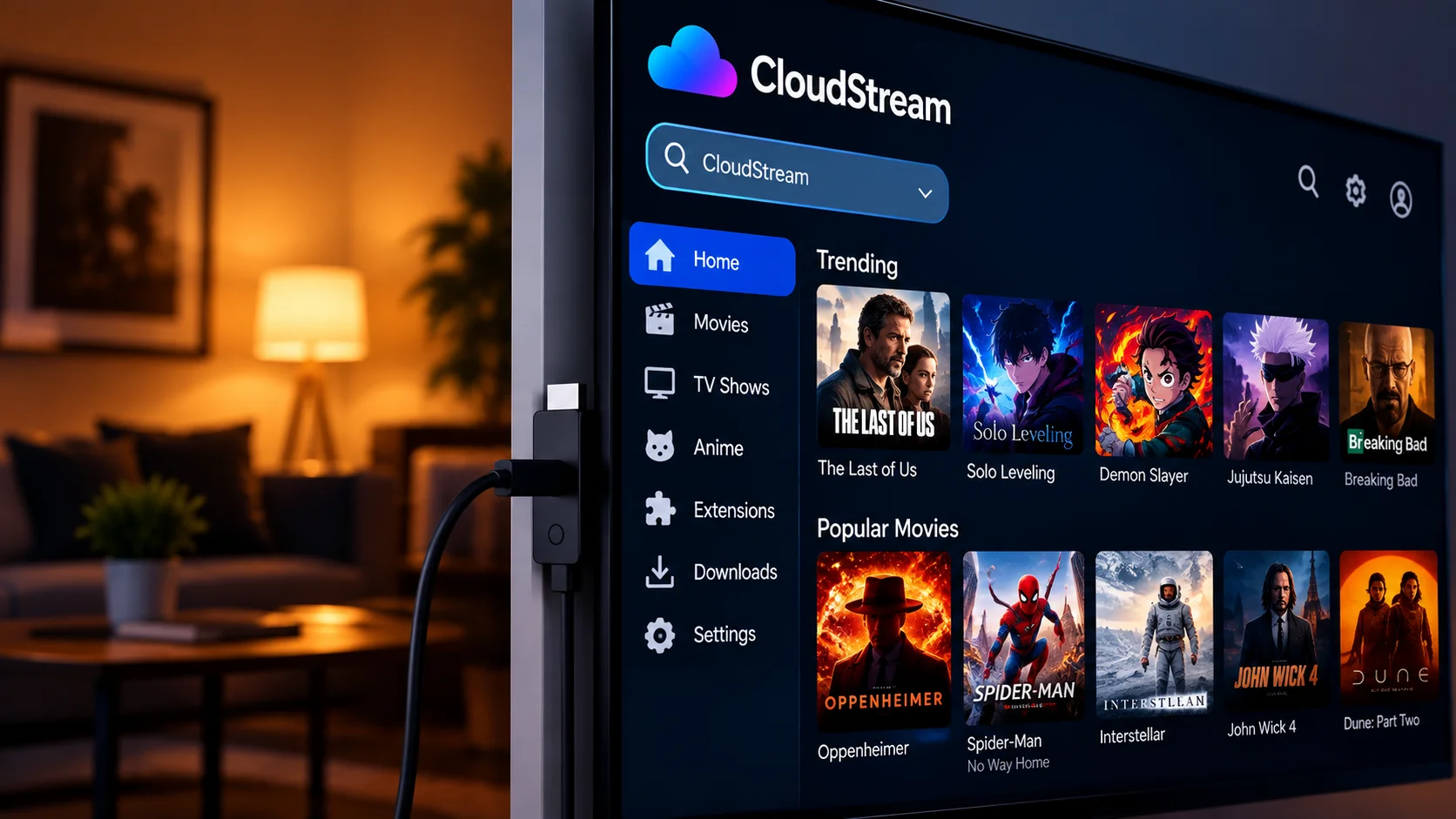
| Detail | Info |
|---|---|
| App Name | CloudStream |
| Version | v4.8.0 Latest |
| Compatible Devices | Fire TV Stick 4K, Lite, Cube and other Fire TV devices |
| Install Time | About 10 minutes |
| Price | 100% free, no subscription |
| Ads | None inside the app |
| Login Required | No account needed |
✅ Quick Answer: How to Install CloudStream on FireStick
- Go to Settings, My Fire TV, Developer Options and enable Install unknown apps for Downloader.
- Search for and install the Downloader app from the Amazon Appstore (free).
- Open Downloader and enter
github.com/recloudstream/cloudstream/releases/latest. - Download and install the CloudStream APK from Assets.
- Open the app, add a repository and install extensions.
📺 Compatible FireStick & Fire TV Devices
CloudStream works on all Fire TV devices, since they run Android-based software.
| Device | Status | Max quality | RAM |
|---|---|---|---|
| Fire TV Stick 4K Max | ✔ Supported | 4K HDR | 2 GB |
| Fire TV Stick 4K | ✔ Supported | 4K HDR | 1.5 GB |
| Fire TV Stick (3rd Gen) | ✔ Supported | 1080p Full HD | 1 GB |
| Fire TV Stick Lite | ✔ Supported | 1080p Full HD | 1 GB |
| Fire TV Cube | ✔ Supported | 4K HDR | 2 GB |
| Fire TV Smart TV (built-in) | ✔ Supported | Up to 4K | Varies |
Specs are manufacturer figures. Older sticks with less RAM can feel slower in any app.
⚡ Method 1: Install via Downloader App RECOMMENDED
The easiest and most reliable method. Downloader is free on the Amazon Appstore and works on all FireStick models.
Enable Install Unknown Apps
- Press Home on your FireStick remote.
- Go to Settings (gear icon at top), then select My Fire TV.
- Click About, find Fire TV Stick and click it 7 times rapidly. You will see “You are now a developer”.
- Go back and open Developer Options.
- Turn ON Install unknown apps for Downloader.
⚠ Newer Fire OS: Path may be Settings, My Fire TV, Developer Options (no need to click 7 times). On some versions the option is called Apps from Unknown Sources. Both work the same way.
Install the Downloader App
- Press Home, go to Find, then Search.
- Type “Downloader”.
- Select the orange Downloader app by AFTVnews.
- Click Get to install it.
- Open Downloader and click Allow when asked for permissions.
Download CloudStream APK
- Open Downloader and click the URL bar on the Home tab.
- Type
github.com/recloudstream/cloudstream/releases/latestand press Go. - Scroll to Assets and select the APK file.
- The APK will start downloading.
Install CloudStream
- When the download completes, Downloader opens the installer.
- Click Install and wait a few seconds.
- Click Open to launch CloudStream.
- Back in Downloader, click Delete to remove the APK and free up storage.
💡 Pro Tip: If you see a “Blocked by Play Protect” warning, click Install Anyway. CloudStream is open source, and you should only download it from the official GitHub page.
📁 Method 2: Install via a File Manager App
If you already use a file manager with a built-in browser (for example ES File Explorer), this works too.
- Open your file manager app on your FireStick.
- Open its built-in browser and go to
github.com/recloudstream/cloudstream/releases/latest. - Download the CloudStream APK under Assets.
- Open the Downloads folder and select the APK file.
- Click Install, then open the app and complete setup.
The file manager also needs Install unknown apps switched on in Developer Options.
📱 Method 3: Transfer from Phone via Send Files to TV
Best option if your FireStick internet is slow. Download the APK on your phone first, then transfer it wirelessly.
- On your Android phone, download the CloudStream APK from the official GitHub page.
- On your FireStick, install “Send Files to TV” from the Appstore.
- On your phone, also install “Send Files to TV”.
- Connect both devices to the same Wi-Fi network.
- On your phone, select the CloudStream APK, click Send and choose your FireStick.
- On FireStick, accept the file and click Install.
🚀 First Time Setup After Installation
CloudStream shows a blank screen on first launch. This is completely normal. Follow these steps.
- Open CloudStream on your FireStick.
- Select your language and click Next.
- Select preferred content types (movies, TV shows, anime) and click Next.
- Go to Settings, then Extensions.
- Click Add repository and enter a repository you trust.
- Install the extensions you want from the list.
- Go back to Home, search for a title and pick a source.
💡 Pro Tip: Typing with a remote is slow. Use the Fire TV app on your phone as a keyboard.
The Pros & Cons
Full transparency: here is what users love and what to keep in mind.
👍 What Users Love
- ✔ 100% free, no subscriptions
- ✔ No ads inside the app
- ✔ No login or sign-up required
- ✔ Works with the FireStick remote
- ✔ Offline downloads supported
- ✔ Multi-language content through extensions
⚠ Things to Consider
- ✖ Not available on the Amazon Appstore
- ✖ Requires Install unknown apps
- ✖ Content depends on installed extensions
- ✖ Some ISPs may block sources
- ✖ You are responsible for what you stream
Why You Should Prefer CloudStream on FireStick?
CloudStream goes beyond basic streaming. Here are the features that set it apart.
TV Remote Friendly
Built for TV screens and remote navigation
More Players
v4.8.0 adds more external players
Offline Downloads
Download shows and movies to watch later
Multi-Language
Content in many languages via extensions
Extension System
Add sources from community repositories
Intro Skip
Intro skip database added in v4.8.0
Open Source
Code is public on GitHub
Casting
Chromecast and FCast support
CloudStream vs Other Free FireStick Apps (2026)
| Feature | CloudStream | Kodi | Stremio |
|---|---|---|---|
| Free to install | ✔ | ✔ | ✔ |
| Uses extensions or add-ons | ✔ | ✔ | ✔ |
| No ads inside the app | ✔ | ✔ | Check |
| Built-in downloads | ✔ | Limited | Limited |
| Setup difficulty | Easy | Complex | Medium |
Comparison is general and can change with updates. Check each app before relying on it.
🛠 Common Problems & Solutions (2026)
Most common FireStick issues with quick fixes.
| Problem | Cause | Fix |
|---|---|---|
| App not installing | Unknown sources not enabled | Turn on Install unknown apps for Downloader |
| Blank screen after install | No extensions installed | Add a repository, then install extensions |
| Repository URL not found | ISP blocking or typing error | Recheck the URL, try another network or DNS |
| Buffering or slow streaming | Busy server or slow Wi-Fi | Switch to a different source or lower quality |
| No links found for content | Extension source broken | Update all extensions and try another provider |
| App crashing on FireStick | Old version or low storage | Update the app, clear cache, free up space |
| Subtitles not showing | Provider has none selected | Settings, Subtitles, enable a subtitle source |
| Parse error during install | Corrupted or incomplete APK | Delete it and download again from GitHub |
Frequently Asked Questions Answered Clearly
Is CloudStream legal to use on FireStick?
The app hosts no content itself and is open source. What you stream through extensions is your responsibility, so only watch content you have the right to access under your local laws.
Does CloudStream work on FireStick Lite?
Yes. Fire TV devices run Android-based software, so the same steps work. Low-memory sticks can be slower, so pick lower quality sources if playback stutters.
Why is CloudStream showing a blank screen on FireStick?
The app ships without content sources. Add a repository and install extensions from Settings, Extensions.
How do I update CloudStream on FireStick?
Download the newest APK from the official GitHub releases page and install it over the old one. This normally keeps settings and extensions. Back up first.
Can I watch Pakistani dramas and Urdu content on FireStick?
It depends on the extensions you install. CloudStream supports multiple languages through extensions, and subtitles depend on the provider.
Does CloudStream need a VPN on FireStick in Pakistan?
CloudStream itself works without one. If your ISP blocks a source or repository address, a different network or DNS may help. Follow your local laws.
Is it safe to install CloudStream on FireStick?
Download only from the official GitHub page, since modified APKs from unknown mirrors are the main risk. Only add repositories you trust.
Conclusion
CloudStream APK v4.8.0 is a free, open-source way to stream on your FireStick. There are no subscriptions, no account and no ads inside the app. Install it with Downloader, add extensions, and you are ready in about 10 minutes.
Always download from the official GitHub page and only watch content you have the right to access.
⚖ Legal Notice: CloudStream is a media player application and does not host, store or distribute any copyrighted content. Users are solely responsible for ensuring compliance with applicable copyright laws in their region.