CloudStream Backup & Restore Guide: Save Your Data (2026)
Written by Zaryab, Founder & Editor, CloudStream Guide. Last updated: September 2026. Menu names can differ slightly between app versions.
Short answer: to back up CloudStream, open Settings, go to Updates & Backup, choose a backup folder, and tap Backup data. To restore, install the app, put the backup file in your Downloads folder, then tap Restore data from backup and select it. Copy the file to cloud storage so a phone reset or reinstall can’t wipe it.
- Backup and restore both live in one place: Settings, then Updates & Backup.
- Choose a folder you can reach from your file manager, and keep a second copy off the device.
- Most restore failures come from the file being in a folder the app can’t open, or from an incomplete copy.
- After restoring, connect to the internet so extensions can download again.
What does a CloudStream backup save?
A CloudStream backup is a single file that stores your app setup so you can rebuild it after a reinstall, a clear-data, or a device change. It mainly protects your settings and the choices you made in the app. Because plugins come from repositories, they may re-download after you restore.
| Item | What to expect after restoring |
|---|---|
| App settings and preferences | Return as you had them |
| Library, bookmarks and watch progress | Return, so you can continue where you stopped |
| Repositories and installed extensions | Come back, but plugin files may need to download again, so stay online |
| Downloaded videos | Not part of the backup file, so copy those separately if you need them |
Note: exactly what is included can vary by app version. Make a backup and a restore test on one device before you rely on it.
How do I back up CloudStream?
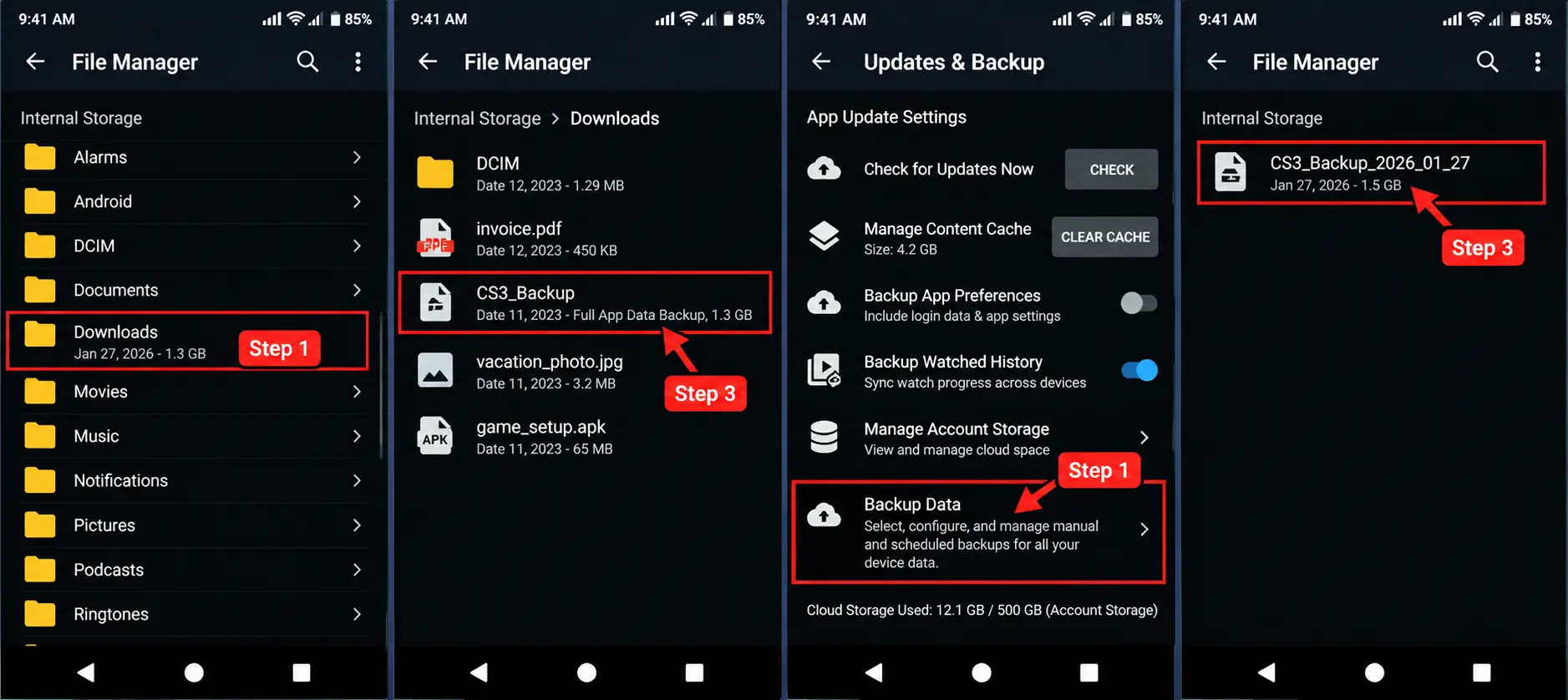
Open CloudStream, go to Settings, then Updates & Backup, and tap Backup data. It takes a few seconds and saves one file to the folder you have selected.
Open Updates & Backup
Open CloudStream, tap Settings, then choose Updates & Backup.
Check the backup folder
Look at Backup folder location and pick a folder you can reach from your file manager, such as Downloads. Do this first so the file doesn’t end up somewhere you can’t find.
Tap Backup data
Wait until the app confirms the file has been saved.
Copy it somewhere safe
Copy the file to cloud storage, a computer, or another device. A backup that only lives on the phone disappears if the phone is reset.
After the backup finishes, open your file manager and find the file in the folder you chose. This is the file you copy to cloud storage or to another device.
How do I change the backup folder or frequency?
In Settings, Updates & Backup, choose Backup folder location to select a different folder, and Backup frequency to have the app save backups on a schedule. Pick a folder you can open in a file manager and keep it the same every time.
Frequency is useful if you add extensions often. Automatic backups are a safety net, but still copy the newest file off the device now and then.
How do I restore CloudStream from a backup?
Install CloudStream, place your backup file in the Downloads folder of the device, then go to Settings, Updates & Backup, tap Restore data from backup and select the file. Restart the app and stay online while it finishes.
Install the latest CloudStream
Install the newest release from the official GitHub releases page and open it once.
Put the backup file on the device
Copy it into the internal Downloads folder. Files in deep folders or on an SD card are the ones the app most often can’t open.
Restore data from backup
Go to Settings, Updates & Backup, tap Restore data from backup and choose your file. If Android asks for file access, allow it.
Restart and check your extensions
Restart the app and connect to the internet. Open Extensions and update any plugin that shows as missing or outdated. If a repository is gone, add it again from the Repository Finder.
Why is my CloudStream restore failing?
Restore usually fails because the file is in a folder the app can’t open, the copy was incomplete, or the app and backup are far apart in version. Match what you see to the cause below.
| What you see | Likely cause | What to do |
|---|---|---|
| The file doesn’t appear in the picker | It’s in a hidden, nested or SD card folder | Move it to internal Downloads and try again |
| Restore runs but nothing changes | Wrong file, or an incomplete copy | Check the file size isn’t tiny, copy it again, or make a new backup on the source device |
| Settings return but extensions are missing | Plugins haven’t downloaded yet, or the repository moved | Go online, open Extensions, update plugins, re-add the repository |
| Error after moving from a very old version | App and backup are too far apart | Install the latest release, then restore |
| The file picker won’t open on a TV | The TV has no file manager | Install a file manager app, or use the phone route in the next section |
Don’t clear app data while testing fixes unless you have a backup you have already confirmed opens. Clearing data removes your current setup.
How do I back up and restore on Android TV and Firestick?
The steps in the app are the same, but moving the file is harder because a remote makes browsing folders slow. The easiest route is to create and copy the backup on your phone, then move it to the TV with cloud storage or a USB drive.
On the TV, install a file manager if none is present, copy the backup into the internal Downloads folder, then use Restore data from backup. If the picker still can’t see the file, avoid USB or SD locations and use internal storage.
When should I back up CloudStream?
Back up before you update the app, before you clear app data or reinstall, before a factory reset, and after you add new extensions or repositories. Keep the last two or three files rather than overwriting a single one, so you can go back if a backup turns out to be bad.
CloudStream backup and restore FAQ
Where does CloudStream save its backup file?
In the folder set under Settings, Updates & Backup, Backup folder location. If you never changed it, look in the folder you picked the first time you backed up, or search your file manager for the backup file.
Can I move a backup to another phone or TV?
Yes. Copy the file to the new device by cloud storage, USB or a file-sharing app, install CloudStream, then use Restore data from backup.
Why are my extensions missing after restoring?
Extensions can take a moment to download again after a restore. Connect to the internet, open Extensions, and update or reinstall plugins. If the repository link has changed, add it again.
How often should I back up?
Before every app update, before clearing data or reinstalling, and after adding new extensions or repositories. You can also set an automatic frequency in the same settings screen.
Is it safe to store a backup in the cloud?
It is fine for most people. The file holds your app settings and library, so keep it in a private folder in a service you trust and don’t share it publicly.
Sources and how this guide is kept accurate
- CloudStream on GitHub: official source code, releases and issue tracker.
- CloudStream community wiki: extension and repository details.
- r/Cloudstream3: community reports on backup and restore problems.
This page is updated when CloudStream changes in a way that affects these steps. Related guides: CloudStream “No links found” fixes and CloudStream subtitles.
New to CloudStream? Start with the full guide to install the app and add a repository.
Read the main guide