CloudStream “No Links Found”: 9 Fixes That Work (2026)
Written by Zaryab, Founder & Editor, CloudStream Guide. Last updated: September 2026. Menu names can differ slightly between app versions.
Short answer: CloudStream shows “No links found” when none of your installed extensions returns a playable link for that title. The usual causes are an outdated or broken extension, a network or DNS block, or a provider that doesn’t carry the title. Switch provider, update all extensions, then change your DNS to fix most cases.
- The error is about extensions and networks, not a broken app.
- Trying another provider is the fastest test: if another title plays, CloudStream itself is fine.
- Clear the cache, never the data, unless you have a backup and nothing else worked.
- If an extension is marked as down, only its maintainer can fix it.
What does “No links found” mean in CloudStream?
“No links found” means CloudStream searched the extensions you selected and none of them returned a playable stream for the title you opened. CloudStream is a free, open-source Android and Android TV app (also called CloudStream 3 or CS3) that hosts no content itself, so everything depends on the pieces below.
| Term | What it means |
|---|---|
| Extension (plugin) | A small add-on that connects CloudStream to one content source. |
| Repository | A hosted list of extensions you can install from. |
| Provider | The source an extension searches. Each carries a different library. |
| Link | A playable stream address that an extension returns to the player. |
Why does CloudStream say “No links found”?
The most common causes are an extension that is out of date, a network that blocks the source, or a title the provider doesn’t have. Match what you see to the likely cause, then go straight to the fix that fits.
| What you notice | Likely cause | Start with |
|---|---|---|
| Nothing works for any title | No extension installed, or a network or DNS block | Fix 4, then Fix 5 |
| It worked yesterday, fails today | The extension broke after its source site changed | Fix 2 and Fix 3 |
| Only one movie or show fails | That provider doesn’t have the title | Fix 1 |
| Fails only on mobile data or only on Wi-Fi | Your internet provider blocks the source | Fix 5 |
| Fails only while a VPN is on | The source rejects the VPN address | Fix 6 |
| Errors start right after an app update | Old extension no longer matches the app | Fix 2 |
How do I fix “No links found” in CloudStream?
Work through these nine fixes in order. Each one takes a minute or two, and most people are done by Fix 5.
Switch to a different provider
Use the provider selector on the home screen or in search and pick another extension. If a different title plays, the app is fine and the first provider is the problem.
Update every extension
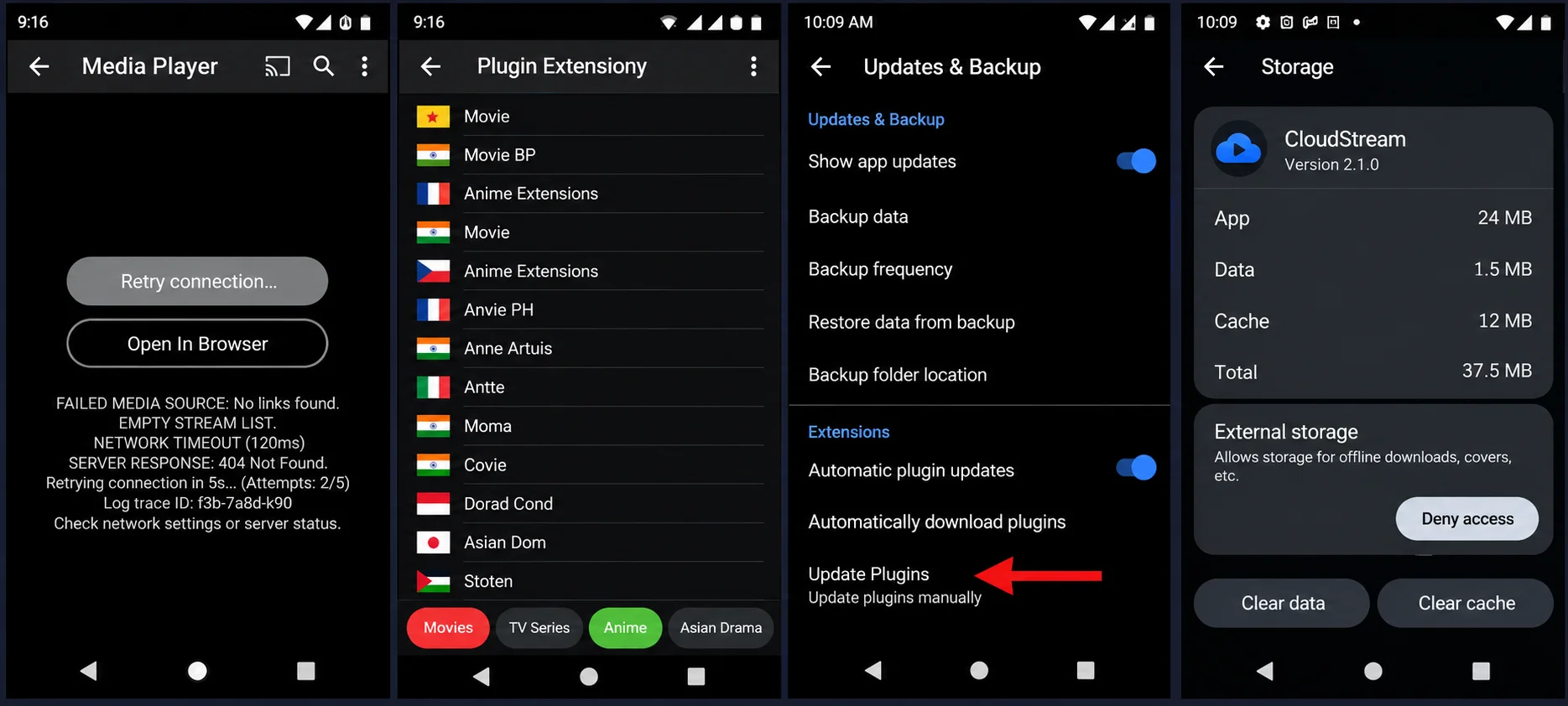
Open Settings, go to Extensions, update all installed plugins, then close and reopen CloudStream. Outdated extensions are the most common reason links suddenly disappear.
Check the extension’s status
In the extension list, look for a status label on the extension you use. If it is marked as down or broken, updating won’t help until its maintainer publishes a fix, so use a different extension for now.
Where to find these screens. Extension and plugin management sits in CloudStream’s Settings under Extensions, and manual plugin updates and backups sit under Updates & Backup. Together they cover Fixes 2, 3 and 4. If an extension keeps failing, remove it there, restart the app, and install it again from a repository you trust.
Make sure your repository still loads
If the extension list is empty or updates fail, the repository may have moved or gone offline. Open its link in your phone’s browser. If it doesn’t load, remove it and add a working one from the Repository Finder.
Change your DNS
Many internet providers block streaming source sites at the DNS level, which produces “no links” even when the extension is fine. Turn on the DNS over HTTPS option in CloudStream’s general settings, or set Android Private DNS to
dns.googleorone.one.one.one. Then reload and search again.Turn your VPN off, or change its server
Some sources refuse VPN addresses and others only work through one. Test once with the VPN off and once on a different server.
Update the app and check date and time
Install the latest release from the official GitHub releases page. Set your device date and time to automatic, because a wrong clock makes secure connections fail and links never load.
Clear the cache
Go to your phone’s Settings, Apps, CloudStream, Storage, then tap Clear cache. Choose cache, not data. Clearing data removes your settings, history and extensions.
Last resort: back up, then clear data or reinstall
Create a backup from the app’s backup option first. Then clear data or reinstall the APK, restore the backup, and re-add your repository. This helps only if the app’s own files are corrupted, which is rare.
Back up before Fix 9. Without a backup you will have to add your repository and every extension again from scratch.
How do I fix “No links found” on Android TV and Firestick?
The fixes are the same, but a few settings sit in different places. On Android TV, clear the cache from Settings, Apps, CloudStream, Storage. On a Firestick, open Settings, Applications, Manage Installed Applications, choose CloudStream and select Clear cache. Fire TV has no easy Private DNS setting, so if you suspect a DNS block, change the DNS on your router and restart the stick.
Typing repository links with a remote is slow. It is easier to add the repository on your phone, create a backup, and restore that backup on the TV.
What if none of the fixes work?
If every fix fails, the problem is probably not on your device. A brand-new release may not be on any provider yet, a title may be missing in your region, or an extension may be broken because its source site changed. Wait a day or two, then check r/Cloudstream3 or the GitHub Issues page to see whether others report the same problem.
Reminder: CloudStream doesn’t host any content. What appears depends on the extensions you install, so availability changes over time and by region.
CloudStream “No links found” FAQ
Does “No links found” mean CloudStream is broken?
Rarely. It means the extensions you searched returned nothing playable. Try another provider first. If a different title plays, the app is working.
Why did it work yesterday and not today?
Extensions depend on outside websites. When one changes, the extension stops finding links until it is updated. Update your extensions and try another provider in the meantime.
Should I clear app data to fix it?
Not at first. Clear the cache, which is safe. Clear data only as a last resort and after making a backup, because it removes your extensions and settings.
Will a VPN fix it?
Sometimes, if your internet provider blocks the source. Sometimes it makes things worse. Test with it on and off to find out which works for you.
Why do some titles have links and others don’t?
Each provider carries a different library. Try a second or third extension, or check back later when the provider updates.
Sources and how this guide is kept accurate
- CloudStream on GitHub: official source code, releases and issue tracker.
- CloudStream community wiki: extension and repository details.
- r/Cloudstream3: community reports on extension outages.
This page is updated when CloudStream changes in a way that affects these steps. Related guide: CloudStream subtitles: add, sync and fix.
New to CloudStream? Start with the full guide to install the app and add a repository.
Read the main guide
4 Comments