CloudStream Subtitles: How to Add, Sync and Fix Them
Part of the CloudStream APK guide. Menu names can differ slightly between app versions.
CloudStream doesn’t ship with subtitles of its own. They come from the extension you’re watching with, from an online subtitle search, or from a file you load yourself. This page shows all three, how to make text readable, and what to do when subtitles are late, missing or in the wrong language.
Quick answer: start a video, tap the subtitles button in the player, and pick a track. If none is listed, use the online search option or load a local .srt file. Timing off? Adjust the subtitle delay instead of downloading a new file straight away.
Turn on subtitles while watching
Start any title
Open a movie or episode from an installed extension and wait for the player to load.
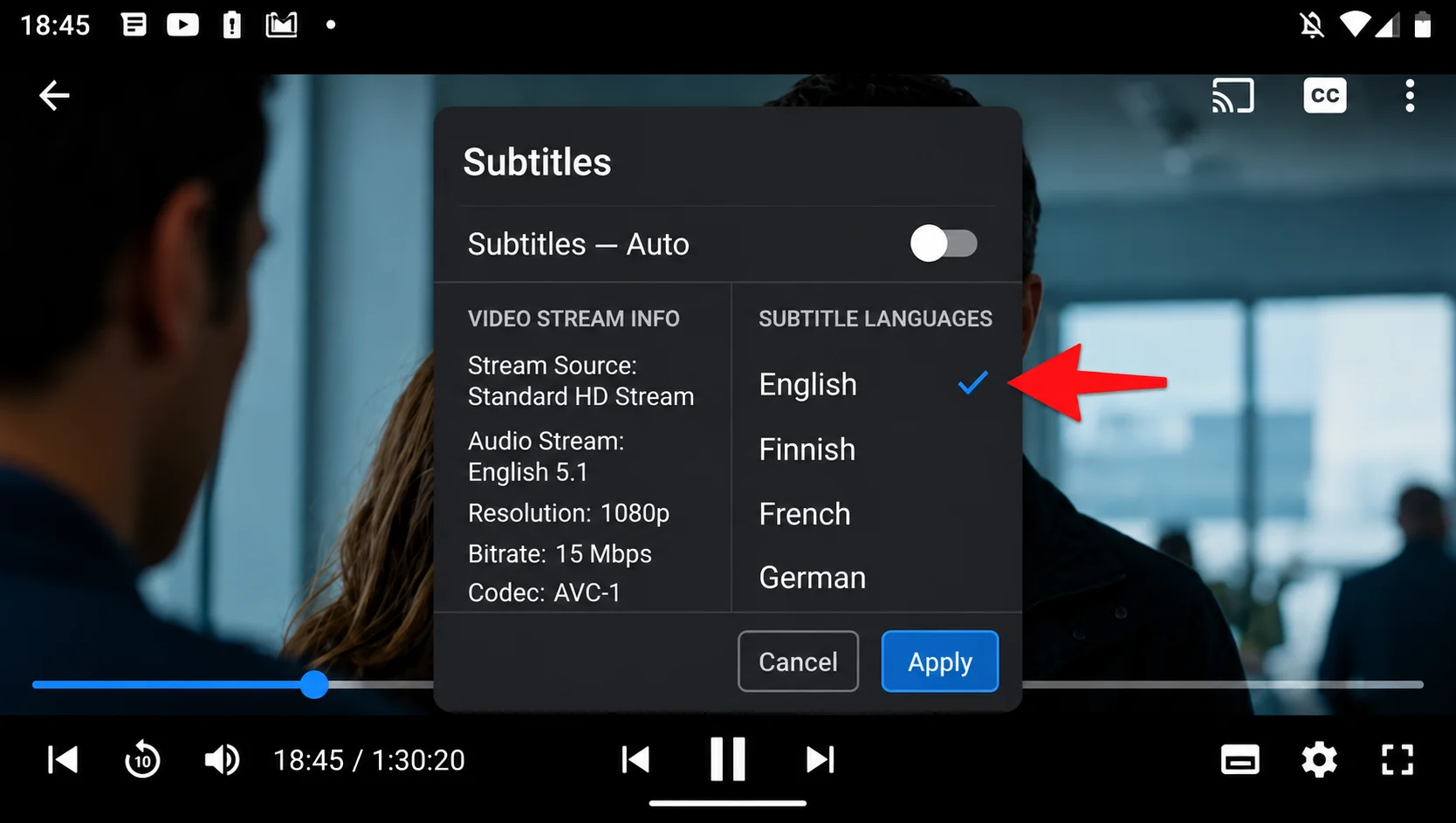
Open the subtitles menu
Tap the screen to show the player controls, then tap the subtitles icon.
Pick a track
Choose a language from the list. Tracks that come with the extension appear here first.
Set a default language
Go to Settings, open the player and subtitle options, and choose your preferred subtitle language (for example English). CloudStream will then pick it automatically when a matching track exists.
Add subtitles when none are listed
If the subtitles menu is empty or has no track in your language, you have two options.
| Method | How it works | Best for |
|---|---|---|
| Online search | Open the subtitles menu, choose the online search option, pick a language, then select a result. | Popular movies and shows |
| Load from file | Save a .srt file to your device, then choose the load-from-file option in the subtitles menu and select it. | Rare titles or a specific translation |
Match the release. A subtitle made for a different cut or frame rate will drift out of sync. When you have a choice, pick the result whose name matches the video you’re playing. Also remember that a subtitle file is plain text: if a download asks you to install something, it isn’t a subtitle file.
Fix garbled characters and question marks
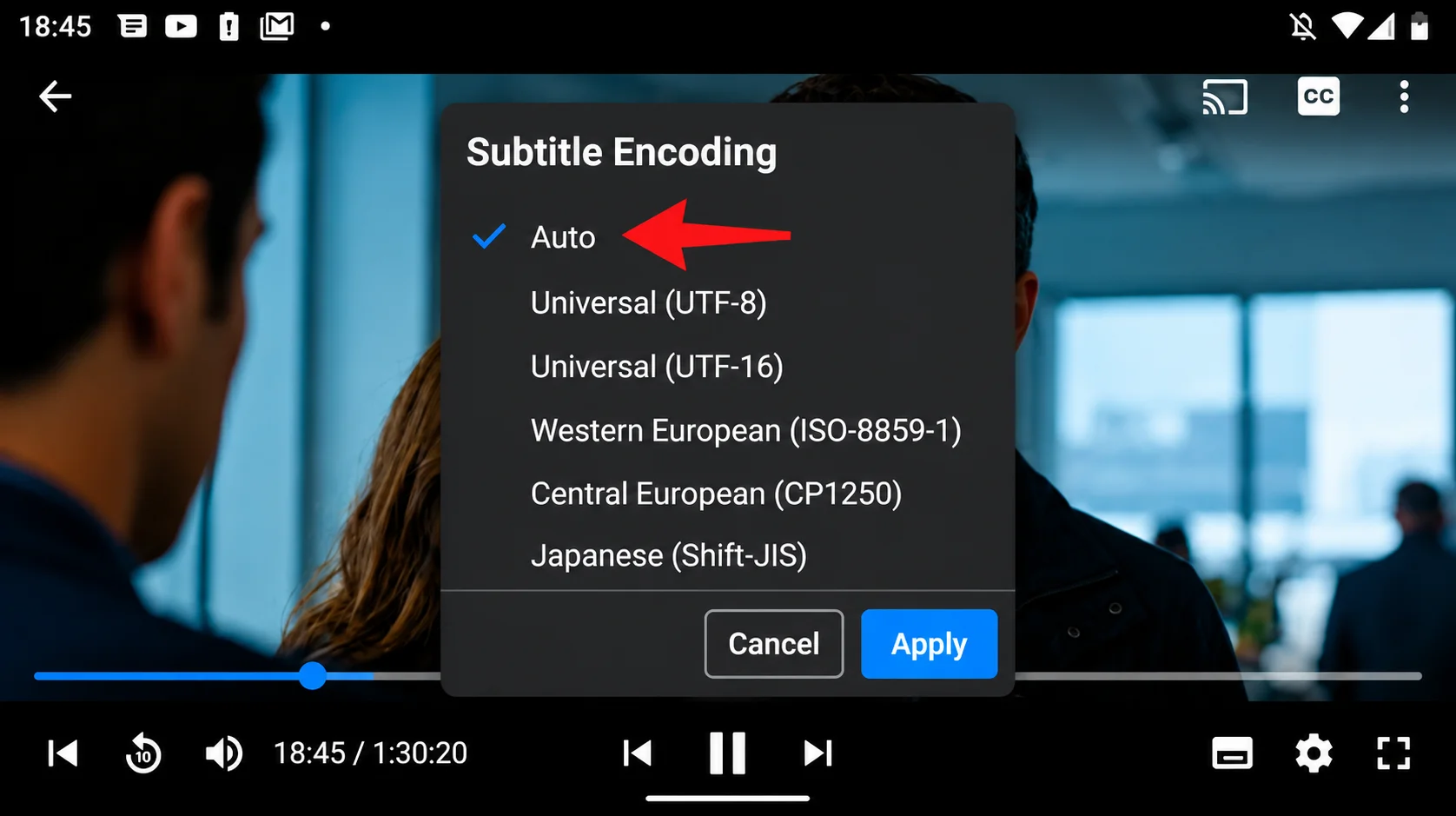
If subtitles show boxes, question marks or strange symbols, the file’s text encoding doesn’t match what the player expects. This happens most with Arabic, Turkish, Cyrillic and other non-English languages.
Open the subtitle settings in the player options and find Subtitle encoding. Leave it on Auto first, since that is right for most files. If the text is still wrong, try UTF-8, or the encoding that matches the language (for example Windows-1256 for Arabic or Windows-1254 for Turkish), then reload the subtitle track.
If only some letters are missing rather than garbled, the subtitle font may not support that script, so try a different font in the same settings.
Make subtitles easier to read
The same subtitle settings let you change size, text color, outline or background, and position on screen. On a phone, a slightly larger size with a dark outline is easiest on the eyes. On a TV viewed from a distance, increase the size further and keep the background solid so text never blends into bright scenes.
Fix subtitles that are early or late
Open the subtitles menu during playback and use the subtitle delay (offset) option. Move it in small steps until the words match the speech.
| What you see | Likely cause | What to do |
|---|---|---|
| Always late or early by the same amount | Different start point in the video | Adjust the subtitle delay once |
| Starts in sync, drifts further off over time | Subtitle made for a different release or frame rate | Choose another subtitle result or file |
| Only one episode is off | That episode’s source differs | Adjust delay for that episode only |
Common problems
The subtitles button is missing or does nothing
Some sources don’t pass subtitle information to the player. Try another server link for the same title, then use online search or load a file.
Subtitles appear in the wrong language
Check the default subtitle language in Settings, then pick the correct track manually from the subtitles menu for this video.
I loaded a file but nothing shows
Make sure the file ends in .srt (not .srt.txt), then select the loaded track in the subtitles menu. If it still stays blank, try the encoding fix above.
Subtitles reset every time I open a new episode
Set your default subtitle language in the settings so it applies automatically. Manually loaded files only apply to the video they were loaded for.
New to CloudStream? Start with the full guide for installing the app and adding a repository.
Read the main guide
4 Comments